Profiles
Profiles
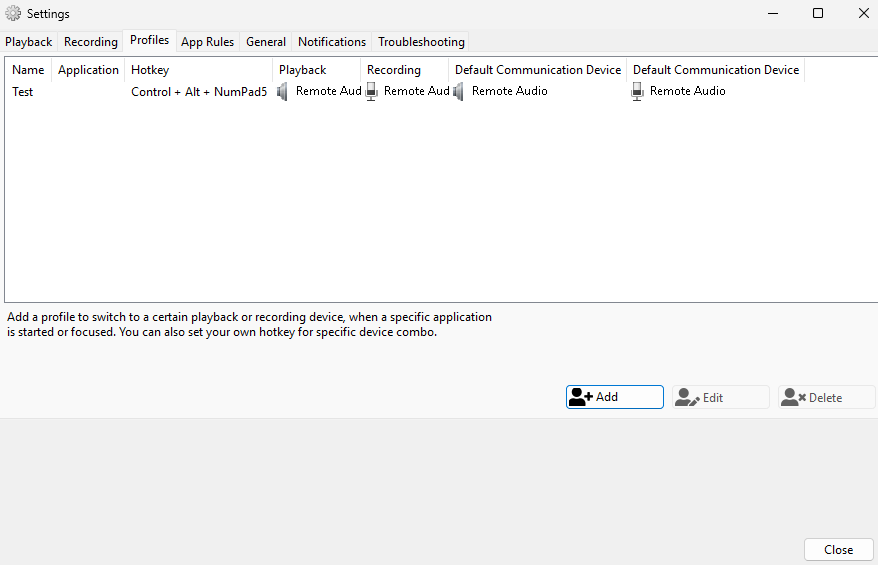
Profiles let you automatically switch the system default audio device when specific conditions are met. A profile defines which devices to activate and what triggers the switch.
Unlike App Sound Lock — which routes individual apps — profiles change the Windows default device globally. All applications that use the default device will follow the change.
Anatomy of a Profile
Each profile consists of:
| Element | Description |
|---|---|
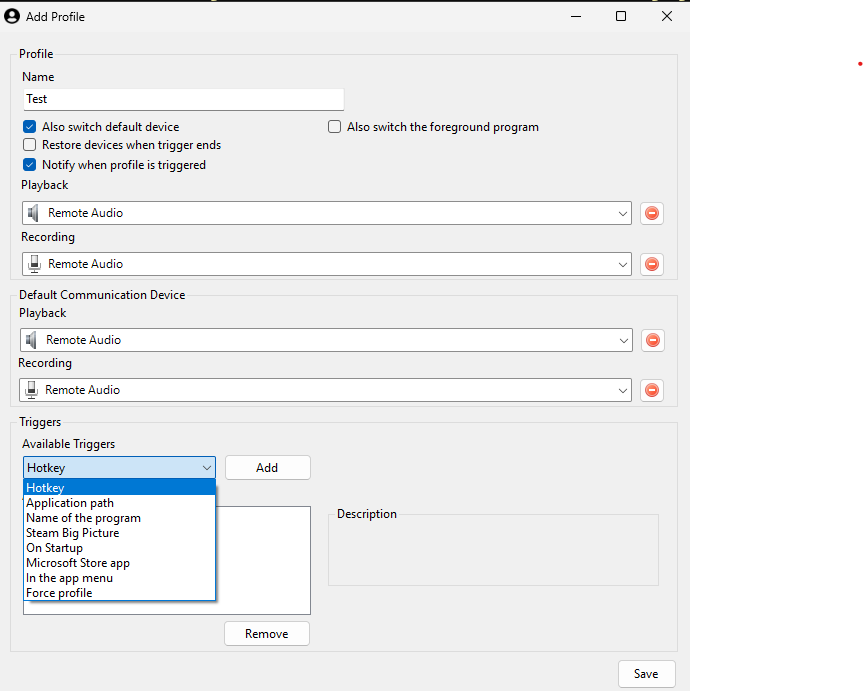
| Name | A human-readable label for the profile (shown in notifications and the tray menu). |
| Devices | Playback, Recording, Default Communication Device (playback), and Default Communication Device (recording) to switch to. |
| Triggers | One or more conditions that activate the profile. |
| Also switch default device | When enabled, the profile sets the Windows default device on activation. |
| Also switch the foreground program | Re-routes the foreground application to the new device in addition to changing the default. |
| Restore devices when trigger ends | When enabled, the original audio configuration is restored when the triggering application closes or the trigger condition ends. |
| Notify when profile is triggered | Shows a banner notification when the profile activates. |
Trigger Types
A profile can have multiple triggers, allowing it to activate in different ways.
Hotkey (Keyboard Shortcut)
Assign a keyboard shortcut (e.g., Ctrl+Alt+F11) to activate the profile instantly. Multiple profiles can share the same hotkey — in that case, pressing the hotkey cycles through them in order.
Application path
Activates when a specific executable becomes the foreground window. SoundSwitch scans the process list on startup and applies existing profiles to already-running applications matching the trigger.
- Matches against the full executable path (e.g.,
C:\Program Files\Game\game.exe). - When the application loses focus or closes, devices can be restored to their previous state if Restore devices when trigger ends is enabled.
Name of the program
Activates when a window whose title contains (or matches) a specific string gains focus. Useful for applications where the process name is too generic but the window title is distinctive.
Steam Big Picture
A special built-in trigger that activates when Steam Big Picture mode launches. SoundSwitch detects this by monitoring for Steam windows with specific window classes (SDL_app, CUIEngineWin32) and title patterns.
On Startup
Activates the profile immediately when SoundSwitch starts. Useful for setting a preferred default device at boot.
Microsoft Store app
Activates when a UWP/Store app gains focus. These apps use the ApplicationFrameWindow window class, which SoundSwitch identifies separately from traditional Win32 applications.
In the app menu
Places the profile in the system tray context menu for manual activation at any time.
Force profile
Acts as a fallback: whenever the Windows default audio device changes externally (e.g., a device disconnects or another program changes the default), this trigger forces the profile's devices to be applied. Ensures your preferred configuration is always maintained.
Creating a Profile
- Open the Profiles tab in SoundSwitch Settings.
- Click Add to open the profile editor.
- Enter a Profile Name.
- Select the checkboxes for the behaviors you want:
- Also switch default device — Sets the Windows default device on activation.
- Restore devices when trigger ends — Restores the previous device state when the trigger ends.
- Notify when profile is triggered — Shows a notification when the profile activates.
- Also switch the foreground program — Routes the currently focused app to the new device.
- Select target devices for each category:
- Playback — speakers, headphones, HDMI audio, etc.
- Recording — microphones, virtual cables, etc.
- Default Communication Device → Playback — the device Windows uses for VoIP output.
- Default Communication Device → Recording — the device Windows uses for VoIP input.
- Each device has a clear (–) button to unset it.
- Add one or more Triggers using the "Available Triggers" dropdown and the Add button.
- Click Save.
Device Restoration
When an application-triggered or window-triggered profile activates, SoundSwitch saves the current audio state before switching. When that application closes or its window loses focus, the saved state is restored — returning the system to the devices that were active before.
This feature requires Restore devices when trigger ends to be enabled on the profile.
Hotkey Cycling
Assign the same hotkey combination to multiple profiles to create a cycling group. Each press of the hotkey moves to the next profile in the group, looping back to the first after the last. This is useful for quickly rotating between a small set of preferred device configurations.
Editing and Managing Profiles
- Edit: Select a profile and click Edit, or double-click the profile in the list.
- Delete: Select one or more profiles and click Delete. For application- or window-triggered profiles, deletion also resets any per-app routing that was established.
Profiles vs App Rules
Profiles change the system default audio device when triggered. All applications using the default device are affected.
App Rules (App Sound Lock) route individual applications to specific devices without touching the system default.
See Profiles vs App Rules for a detailed comparison.