
General Settings
General Settings
The General tab controls how SoundSwitch behaves at the application level — from startup behavior and device cycling to notifications and updates.
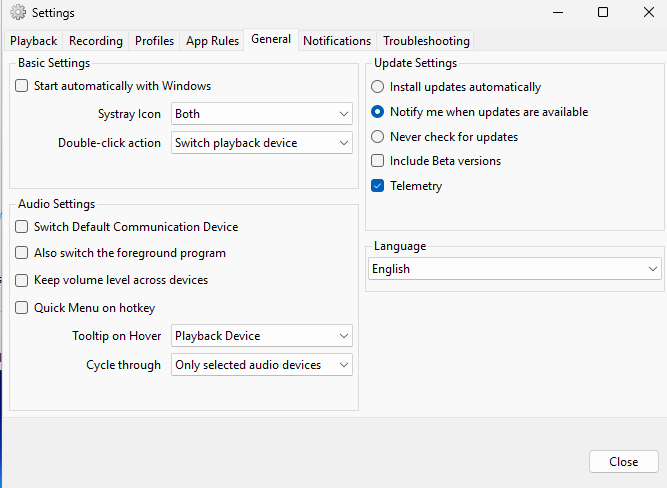
Left Column: Behavior Settings
Start automatically with Windows
Registers SoundSwitch to run at login so it is always available to switch devices, enforce profiles, and apply app rules without manual intervention.
Systray Icon
Determines what icon the SoundSwitch tray icon displays.
| Option | Behavior |
|---|---|
| Never | Always display the default SoundSwitch icon. |
| Recording | Show the icon of the active recording (microphone) device. |
| Playback | Show the icon of the active playback (speaker/headphone) device. |
| Both | Show the current device icons, alternating between playback and recording. |
Double-click Action
Sets what happens when you double-click the tray icon.
| Option | Behavior |
|---|---|
| Switch playback device | Cycles to the next available playback device. |
| Switch recording device | Cycles to the next available recording device. |
Switch Default Communication Device
When enabled, switching the default playback device also switches the Windows Default Communication Device. Windows uses the communication device separately from the multimedia device — for example, VoIP apps like Discord or Skype may default to the communication device. Enabling this keeps both in sync when SoundSwitch changes devices.
Also switch the foreground program
When enabled, changing the default audio device also re-routes the currently focused (foreground) application to the new default device. This ensures the app you are actively using immediately follows the device change.
Keep volume level across devices
Windows stores volume levels independently per device. When this option is enabled, SoundSwitch preserves the current volume percentage on the source device and applies it to the destination device when switching. This prevents sudden volume jumps when moving between devices with different volume levels.
Quick Menu on hotkey
Instead of blindly cycling through devices every time you press the hotkey, enabling this option shows a visual selection menu. The hotkey opens the menu; pressing the hotkey again cycles the selection; releasing the hotkey activates the highlighted device.
Tooltip on Hover
Determines what information appears when you hover over the SoundSwitch tray icon.
| Option | Tooltip shows |
|---|---|
| Playback Device | Name of the current default playback device. |
| Recording Device | Name of the current default recording device. |
| Both Devices | Names of both the current playback and recording devices. |
Cycle through
Controls which devices are included when cycling through audio devices via hotkey or tray icon double-click.
| Option | Behavior |
|---|---|
| All audio devices | Cycle through every detected device on the system. |
| Only selected audio devices | Cycle through only the devices you have checked on the Playback and Recording tabs. This is the recommended option for most users. |
Right Column: Update & Language Settings
Update Settings
Controls how SoundSwitch checks for and applies new versions.
| Option | Behavior |
|---|---|
| Install updates automatically | Download and apply updates without prompting. |
| Notify me when updates are available | Show a notification when a new version is available, allowing you to choose when to update. |
| Never check for updates | Disable automatic update checking entirely. |
Include Beta versions
When enabled, SoundSwitch considers pre-release (beta) versions as available updates. Useful for testing upcoming features, but may introduce instability.
Telemetry
Allows SoundSwitch to send anonymized usage data to help improve the application.
Language
Sets the display language for the SoundSwitch interface. Changing this requires restarting the application for the new language to take effect.