
App Sound Lock (App Rules)
App Sound Lock (App Rules)
App Sound Lock lets you route individual applications to specific audio devices — without changing the system default. This is the tool you reach for when you want Spotify to play through your speakers while your game audio goes to your headphones.
How It Works
Behind the scenes, App Sound Lock uses Windows Audio Session APIs to target specific processes and route their audio stream to the device you choose. The system default device remains unchanged — only the matched application's output (or input) is redirected.
The Matching Engine
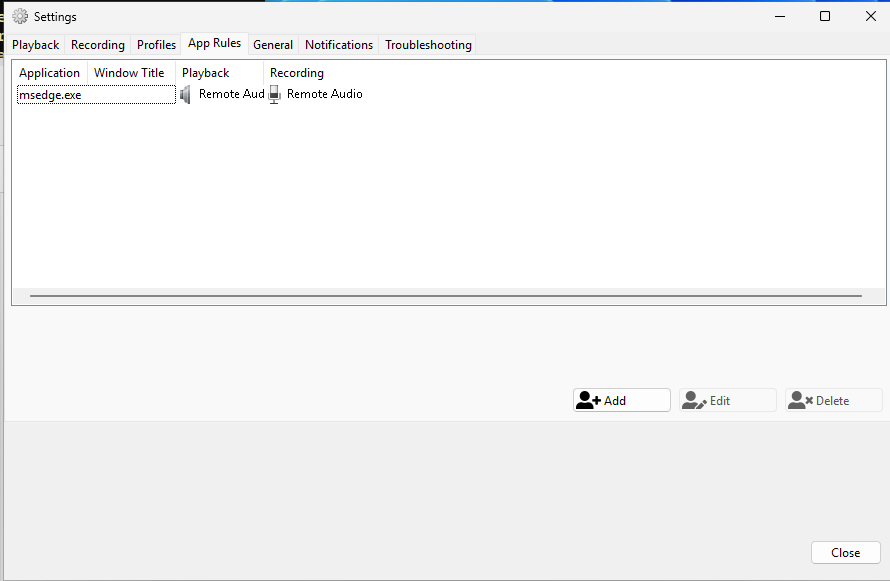
Each rule is displayed in a list with the following columns:
| Column | Description |
|---|---|
| Application | The process name or path that the rule matches. |
| Window Title | The window title pattern to match (can be blank to match any window). |
| Playback | The audio output device to route the application's sound to. |
| Recording | The audio input device to route the application's microphone access to. |
Rule Fields
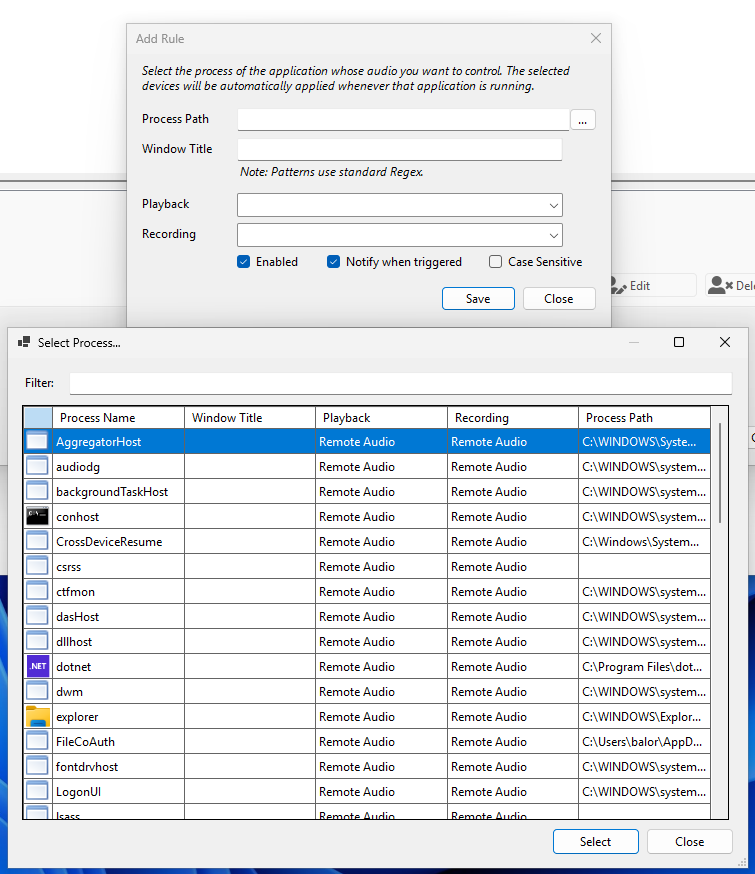
When adding or editing a rule, you configure these fields:
| Field | What It Matches | Example |
|---|---|---|
| Process Path | The full process path or name — matched as a regular expression | .*chrome\.exe.* matches any Chrome process |
| Window Title | The title of the application's active window — matched as a regular expression | .*YouTube.* matches any window with "YouTube" in the title |
| Playback | The audio output device to route the application's sound to | Speakers, Headphones, etc. |
| Recording | The audio input device to route the application's microphone access to | Microphone, Virtual Cable, etc. |
If a field is left blank, it acts as a wildcard — meaning it matches any value for that field. A rule with only a Process Path set will match that process regardless of its window title.
Rule Options
| Option | Description |
|---|---|
| Enabled | Toggle the rule on or off without deleting it. Disabled rules are ignored by the matching engine. |
| Notify when triggered | Show a banner notification when this rule successfully routes an application. Useful for confirming matches during setup. |
| Case Sensitive | When checked, the regex patterns match with case sensitivity. |
The "..." Button and Process Picker
The Process Path field has a ... button. Clicking it opens a process picker dialog that lists all running processes, showing their Process Name, Window Title, current Playback device, current Recording device, and full Process Path. You can select a process from this list to auto-fill the Process Path field, or use the Filter textbox to narrow the list.
When Rules Are Applied
App Sound Lock monitors the system in two ways:
- Process Detection — Whenever a new process starts or is detected, all enabled rules are evaluated against it.
- Foreground Window Changes — Whenever you switch to a different window, rules are re-evaluated against the newly focused application.
Once a rule matches a process, the application's audio is immediately routed to the configured device(s). The routing persists as long as the process is running.
Creating a Rule
- Open the App Rules tab in SoundSwitch Settings.
- Click Add.
- The Add Rule dialog appears with a prompt: "Select the process of the application whose audio you want to control." Click the ... button next to Process Path to open the process picker.
- Select a running process from the picker. The Process Path field is auto-filled based on the selected process. You can edit it manually for more precise matching.
- Optionally set a Window Title pattern.
- Choose the target Playback device and/or Recording device from the dropdowns.
- Adjust the Enabled, Notify when triggered, and Case Sensitive options as desired.
- Click Save.
Editing and Managing Rules
- Edit: Select a rule and click Edit, or double-click the rule in the list.
- Toggle: There is no checkbox to quickly toggle rules on or off in the list; use Edit to change the Enabled option.
- Delete: Select a rule and click Delete.
Practical Examples
| Use Case | Process Path | Window Title | Playback Device |
|---|---|---|---|
| Route all Chrome audio to speakers | .*chrome\.exe.* | (blank) | Speakers |
| Route YouTube (in Chrome) to headphones | .*chrome\.exe.* | .*YouTube.* | Headphones |
| Route Discord voice chat to a specific mic | .*discord\.exe.* | (blank) | Recording: "Blue Yeti" |
| Route a specific game executable | .*eldenring\.exe.* | (blank) | Gaming Headset |
Resetting Per-App Routing
If audio routing gets into a confusing state, the Troubleshooting tab includes a Reset button under Reset Per App Audio. This clears all process-level device assignments and allows Windows to reassign applications to their default devices, after which App Sound Lock rules will reapply on the next process or window event.
App Sound Lock vs Profiles
App Sound Lock routes individual apps to specific devices. The system default device does not change.
Profiles change the system default device when a trigger condition is met. This affects all applications that use the default device.
See Profiles vs App Rules for a detailed comparison.